
Cliquez ici pour lire cette page en français
If your practice already runs on Ortholeader, activating the DentalMonitoring integration removes the busywork that normally sits between the two tools. Patients flow machine-to-machine, so there is no more double entry when you create a record, no more searching for the same person in both systems, and none of the transcription errors that creep in when names, dates or IDs are re-typed by hand.
For an orthodontic practice the pay-off is concrete: your patients' DM scans are pulled straight into Ortholeader so aligner consults are prepped before the patient sits down, and the DentalMonitoring record is one click away from the patient file. The integration is activated at no extra cost, and the version upgrade it requires is free of charge.
Overview
The Ortholeader integration connects Ortholeader with DentalMonitoring so patient data and scans stay aligned between the two platforms.
- Patient creation: create new patients in DentalMonitoring directly from Ortholeader.
- Patient pairing: link existing Ortholeader patients to their DentalMonitoring profile.
- Patient updates: keep patient data in sync between the two systems.
- One-click patient access: open a patient's DentalMonitoring record straight from the Ortholeader patient file.
- Scan retrieval: pull a patient's validated DM scans into Ortholeader and into the patient's Téa app.
Prerequisites
- Your DM API Key: If you have not done so already, generate your DM API Key.
- Ortholeader version 10.11: The integration is only available on this version or later. If you are not on it yet, contact the Ortholeader hotline to install it — the upgrade is done at no extra cost.
- The DM Integration must be activated in Ortholeader, if you have not done so already:
- Get in touch with your Ortholeader commercial team: they will provide you with the required order form.
- Fill and return the order form by email (bdc@dentalsoft.fr) or post (CC Dentaire, ZA de la Ronze, 241 rue des Carrières, 69440 Taluyers).
- The Ortholeader technical team will then activate the integration.
Setup your Ortholeader integration
With your DM API Key and the DM integration activated on your Ortholeader account:
Enter your DM API Key in the Gestion des utilisateurs window. For each practitioner, paste the key into the Clé API DM field and enable the DentalMonitoring module:
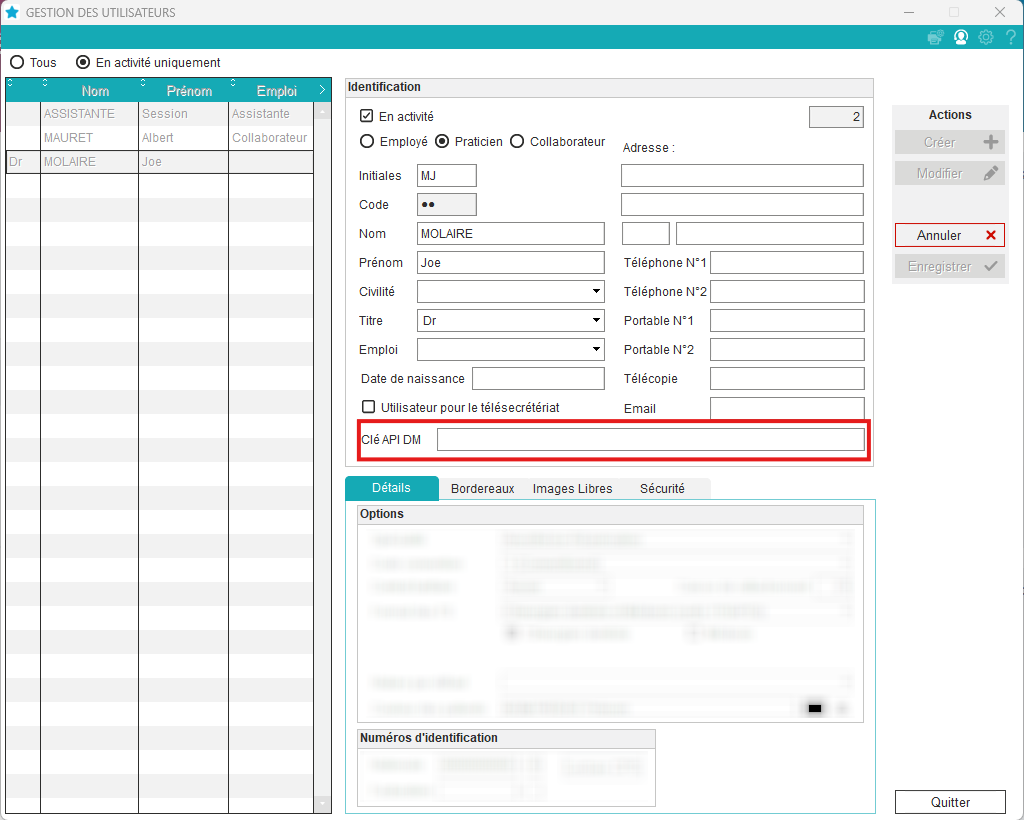
Once the key is saved and the module is enabled, the gateway is active.
Usage
Open the gateway for a patient
From a patient's record in the clinical or front-desk view, open the Menu complémentaire and click Dental Monitoring:
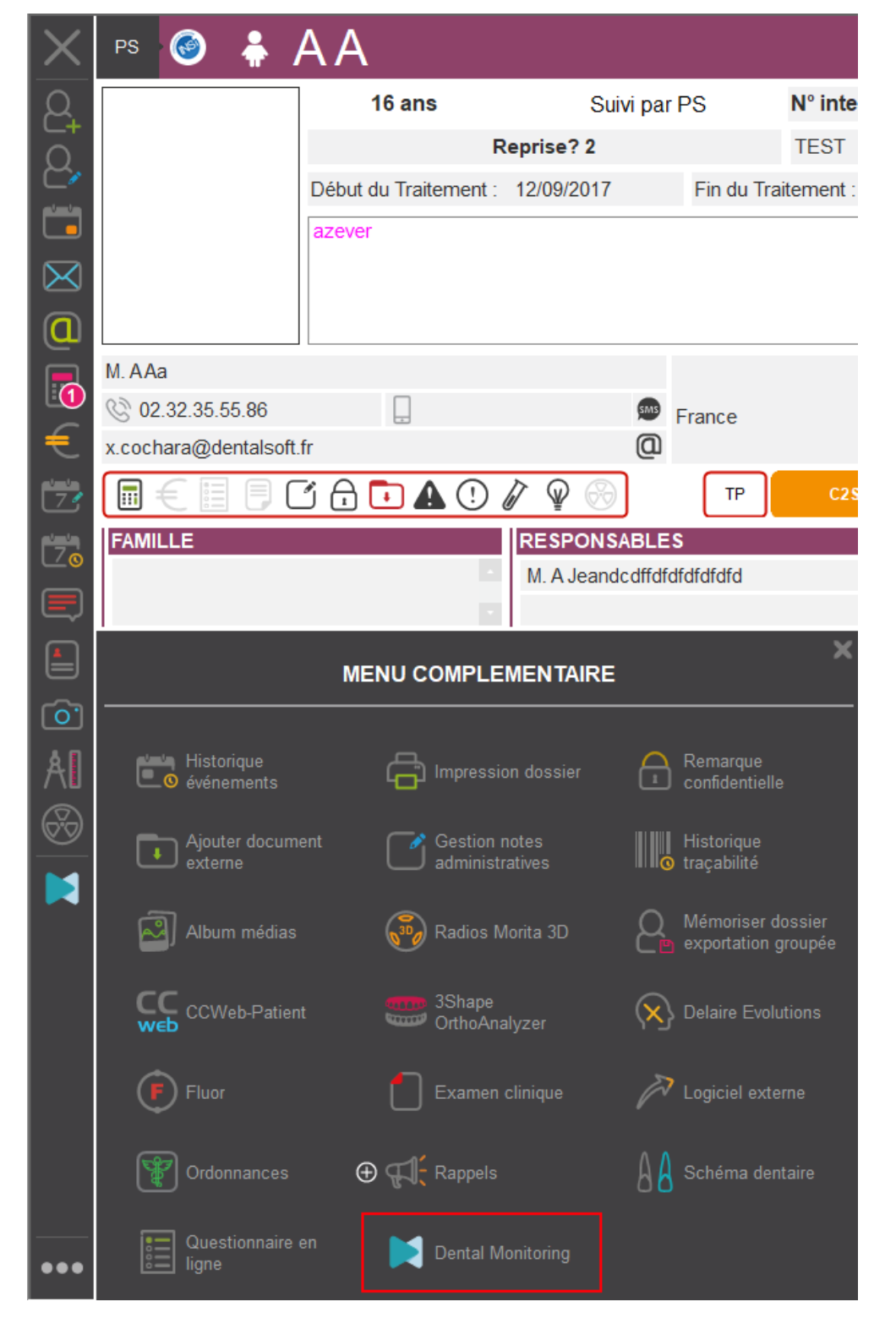
A new window opens with the DentalMonitoring gateway for that patient. If the patient already exists in DentalMonitoring they are paired automatically; if not, they are created in DentalMonitoring on the spot.
Choose a practice
If you have several practices in DentalMonitoring, a window opens so you can choose which practice to pair the patient with:
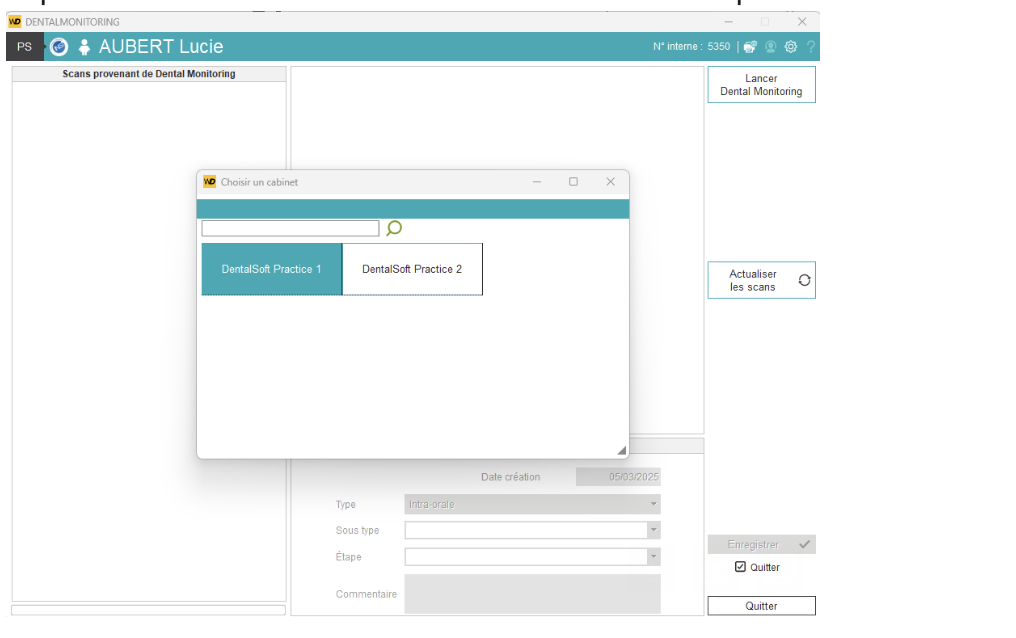
Retrieve a patient's scans
Scans may be imported into Ortholeader's imaging system:
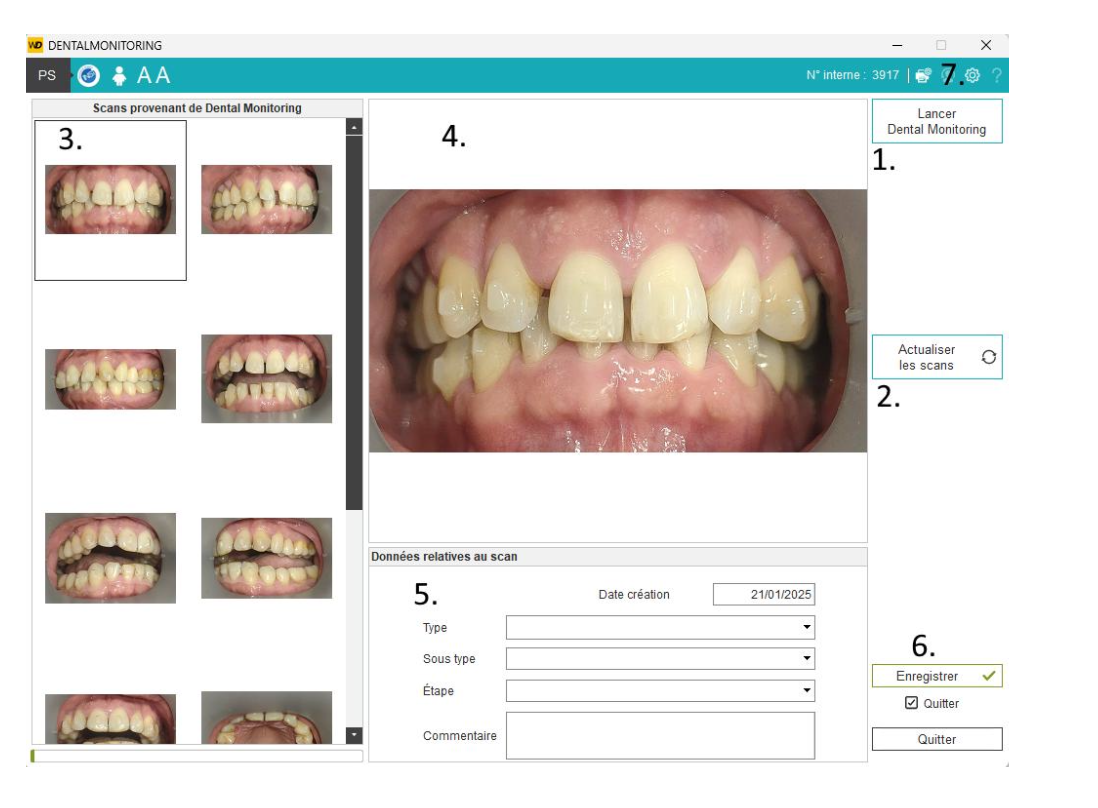
- Open the patient's DentalMonitoring file.
- Refresh the patient's scans.
- Scan list imported from DentalMonitoring.
- Selected scan.
- Scan details to set before importing into the imaging module.
- Save the scan with its details and import it into the imaging module.
- Maintenance options.
Customer support
For any issue or question about the integration, you can contact either DM or Ortholeader customer support interchangeably. Each team will escalate to the other partner if needed.
- Ortholeader support: dentalmonitoring@dentalsoft.fr
- DM support: support@dental-monitoring.com