
If your practice already runs on Dolphin, connecting it to DentalMonitoring takes the busywork out of remote aligner monitoring. Patient records flow between the two systems automatically, so there is no more double entry, no more re-searching for the same patient, and no more toggling between screens to check where someone is in treatment. Data moves machine-to-machine, which also removes the transcription errors that creep in when names or dates are re-typed by hand.
The pay-off for an orthodontic practice is tangible: monitored patients stay visible in a single workflow, and consult prep is a click away. The DentalMonitoring patient card opens straight from Dolphin's Treatment Card, so you see exactly where each aligner patient stands before they sit down.
Overview
The Dolphin integration connects Dolphin Management with DentalMonitoring so that patient data and monitoring status flow between the two platforms without double entry.
- Patient creation: create new patients in DentalMonitoring directly from Dolphin.
- Patient pairing: link existing Dolphin patients to their DentalMonitoring profile.
- Patient updates: keep patient data in sync between the two systems.
- Monitoring controls: start, pause, resume and stop monitoring from within Dolphin.
- One-click patient access: open a patient's DentalMonitoring card straight from Dolphin's Treatment Card, with their current monitoring status visible on hover.
Prerequisites
- A DM API Key: If you have not done so already, generate your DM API Key.
- You must be runnin Dolphin version 11.4.9228 (SP4) or higher.
- DentalMonitoring set up inside Dolphin Management. Contact your Dolphin rep for help with this.
Setup your Dolphin integration
To add DM Doctor accounts to your Dolphin integration:
-
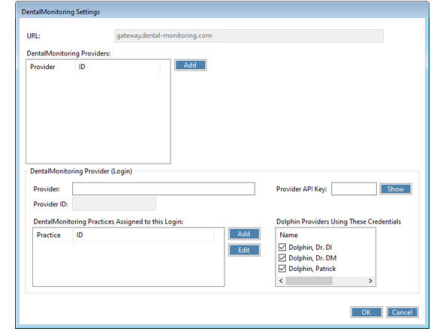
From the Edit menu, select Integrations → DentalMonitoring Setup.
-
On the DentalMonitoring Settings screen, next to the DentalMonitoring Providers list box, click Add:
-
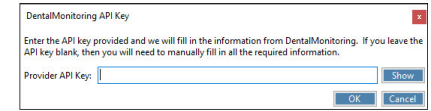
In the new DentalMonitoring API Key window, enter your DM API Key and click Ok:
-
The required information is filled in for you on the DentalMonitoring Setup screen. Click Ok.
Note
If you have more than one set of DentalMonitoring credentials, repeat the previous steps for each DM account you want to integrate with Dolphin.
-
Check or uncheck Dolphin providers from the Dolphin Providers using These Credentials section to toggle which Dolphin users should have access to each provider.
Usage
The DentalMonitoring button on the Treatment Card
Once the integration is activated, a DentalMonitoring button appears at the top of every patient's Treatment Card. Hover over it to see that patient's current status in DM:

Link an existing DentalMonitoring patient to a Dolphin patient
-
Click the DM toolbar button
 and select Link to a Patient in DM. The Link DentalMonitoring Patients screen opens.
 -
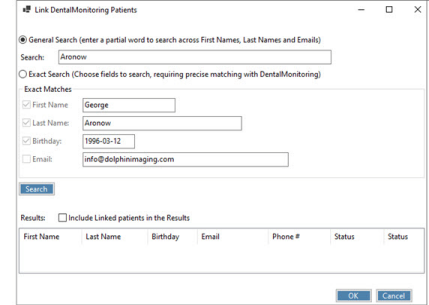
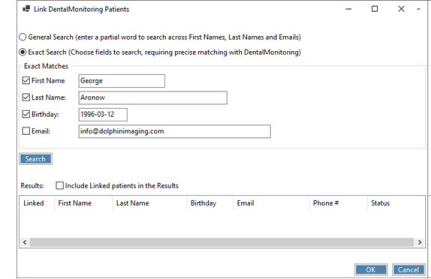
Search for the patient using either:
-
General Search — type in a partial word to search across first names, last names and emails:
-
Exact Search — tick the fields you want to match on and enter the exact values:
-
-
Click Search, then link the correct DM profile to the Dolphin patient.
Note
To include DentalMonitoring patients that are already linked to patients in Dolphin Management, tick Include Linked patients in the Results.
Create a new DentalMonitoring patient from Dolphin
- Click the DM toolbar button .
- Select Create Patient in DentalMonitoring.
- On the confirmation message box, click Yes.
- A second message box confirms the patient has been created in DM — click Ok.
Start, pause, resume or stop monitoring
From the Treatment Card, use the DM toolbar button to control a patient's monitoring directly.
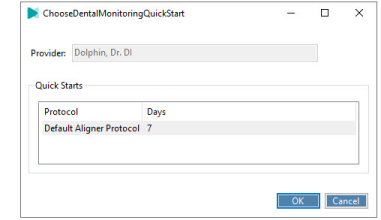
Start Monitoring — click Start Monitoring. On the Choose DentalMonitoring Quickstart screen, pick one of the Quickstarts available on your DM account and click Ok.
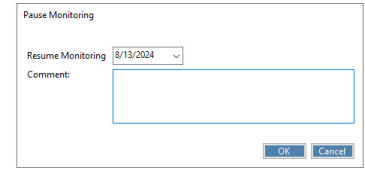
Pause Monitoring — click Pause Monitoring. On the Pause screen, pick the date monitoring should resume, enter a reason, then click Ok.
Resume Monitoring — click Resume Monitoring. Enter the date the patient should be notified to take a DM scan, enter a reason, then click Ok.
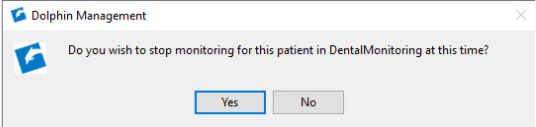
Stop Monitoring — click Stop Monitoring, then click Yes on the confirmation.
Open a patient in DentalMonitoring
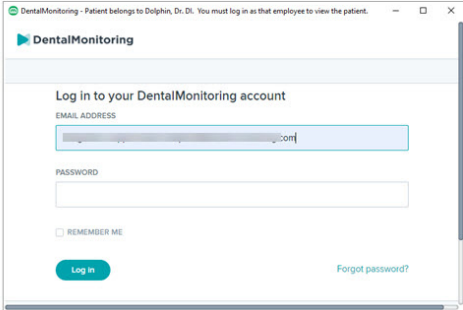
From the patient's Treatment Card, click Open Patient in DentalMonitoring (DM logo). You will be prompted to log into the DentalMonitoring account associated with this patient:
Other information
Finding DentalMonitoring help inside Dolphin
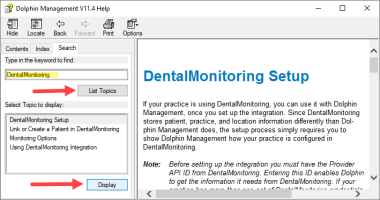
From the Help menu, select Search:

Enter DentalMonitoring in the Search tab, click List Topics, then select a topic and click Display:
Customer support
For any issue or question about the integration, you can contact either DM or Dolphin customer support interchangeably. Each team will escalate to the other partner if needed.
- Dolphin support: Dolphin Service Club
- DM support: support@dental-monitoring.com