System for Dentists (SFD) is UK based dental practice management system, which features seamless NHS integration and fully customisable system which adapts to your practice, not the other way round.
Overview
System for Dentists' DM integration takes the busy work out of managing your DM patients. All the essential features are implemented to allow to easily and quickly create and get patients started in DM.
Setup
The System for Dentis There are two steps to setting up the integration:
- Adding your DM Doctor account(s) to SFD
- Mapping your SFD Dentist and Orthodontis accounts to the DM Doctor account(s)
Admin privileges required
You need to be using an SFD account with admin privileges to complete the DM integration setup process.
Prerequisites
- Your DM API Key: If you have not done so already, generate your DM API Key.
- Your DM Doctor ID: Ask a member your DM team for this.
Setup your integration
Add your DM Doctor account(s) to SFD
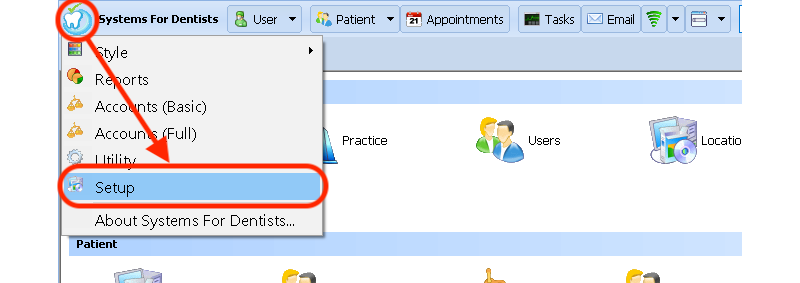
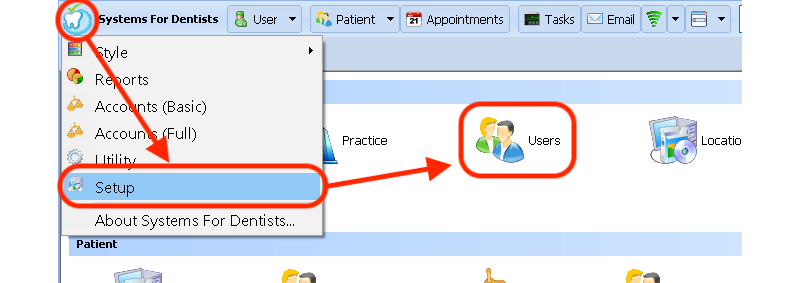
Click on the SFD tooth logo on the top right of the screen, then click Setup:
Then, scroll to the bottom of the page, where you should find the DentalMonitoring logo:
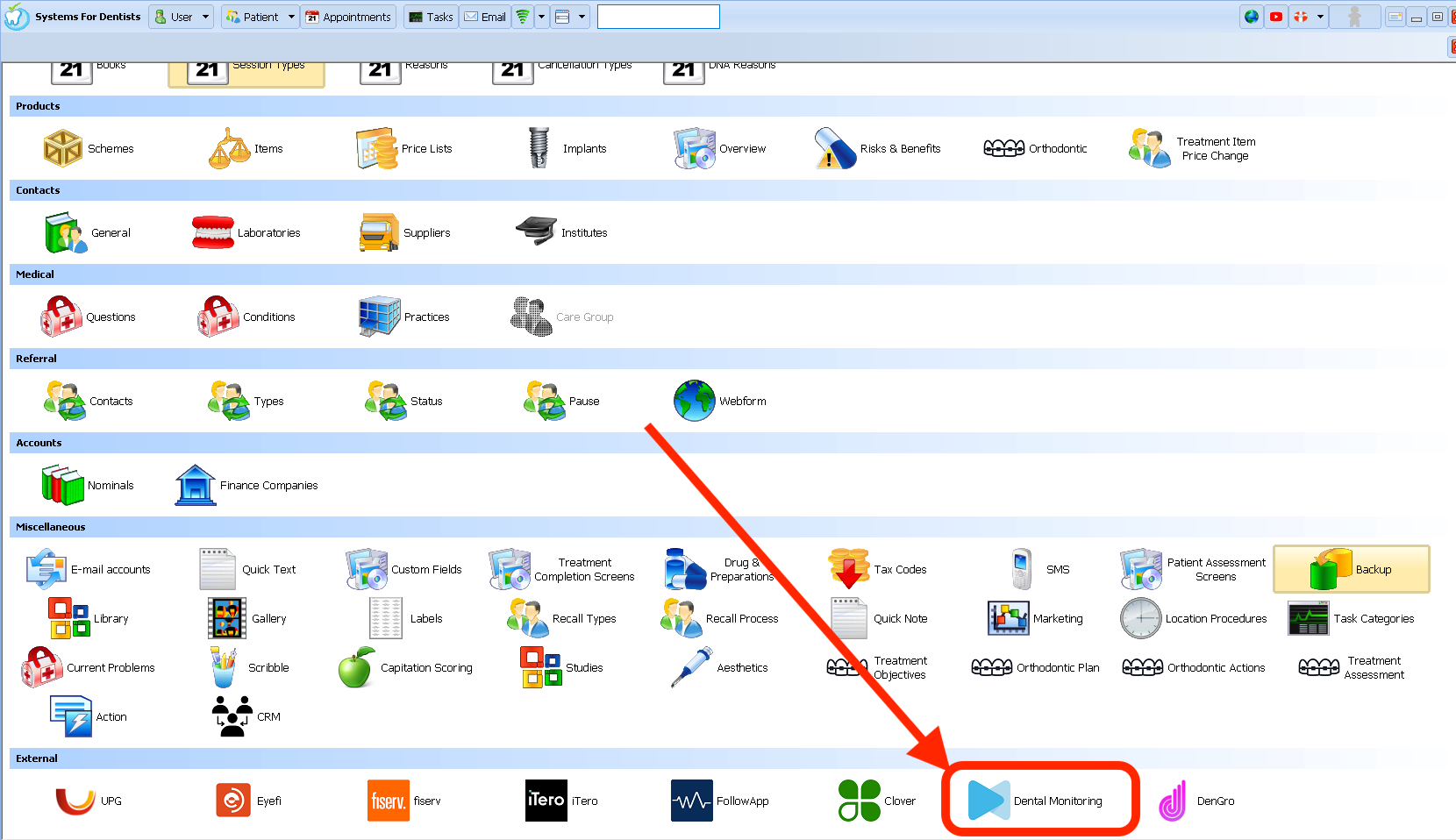
Click the DM logo to open up the DM account configuration window:
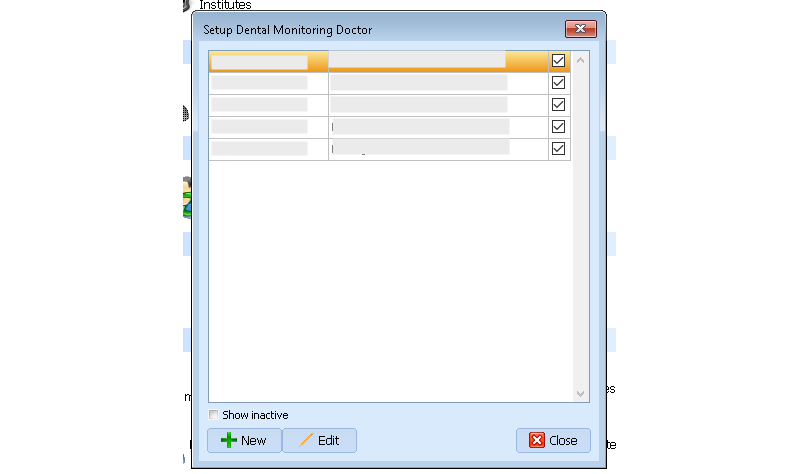
Click the New button and fill in the following information:
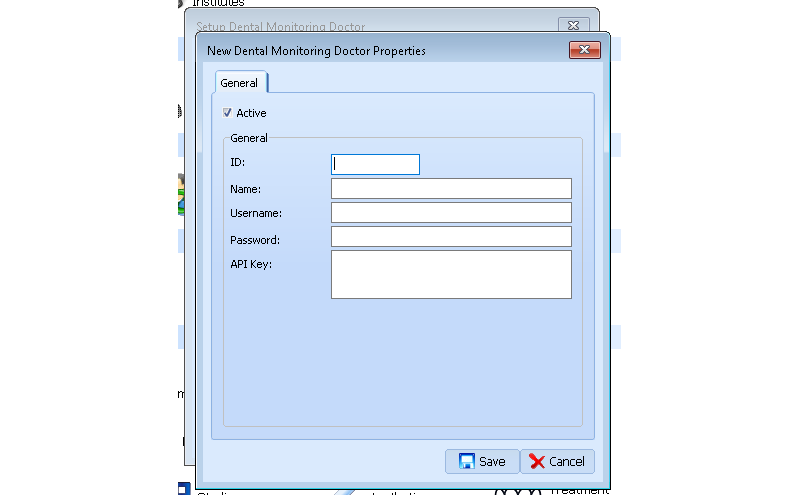
- ID: Your DM doctor ID
- Name: Your DM doctor name.
- Username and Password: Not required, you may leave these blank.
- API Key: Copy and paste your DM API Key from your DM account into this field.
Multiple DM Doctor accounts
If your practice operates multiple DM Doctor accounts, e.g. in the case where you have multiple doctors who each have their own account, repeat the steps above for each DM Doctor account.
Map your DM Doctor(s) to your SFD Users
Now that you have added your DM Doctors to SFD, you need to tell SFD which SFD user corresponds to which
Open up the Users dialog from the Setup screen.
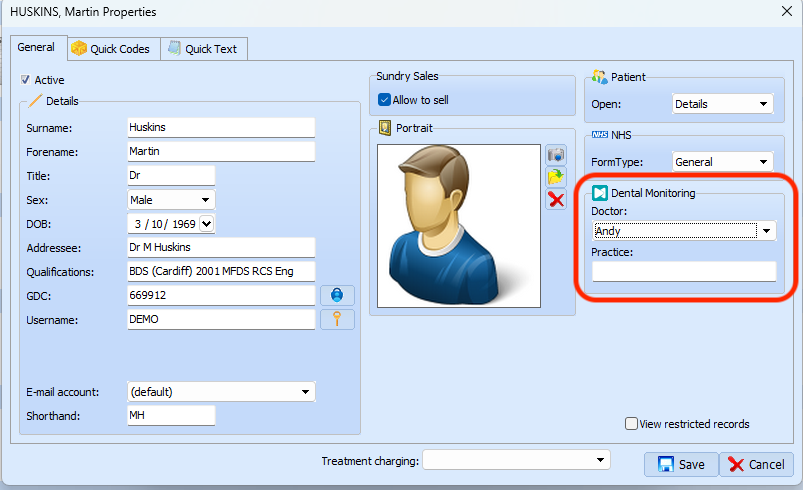
Then for each user, select which DM Doctor they correspond to.
SFD User roles
DM Doctors can only be assigned to Dentist and Orthodontist users in SFD.
Mapping SFD users to DM Doctor accounts controls under which account patients get created when using the SFD <-> DM integration.
Usage
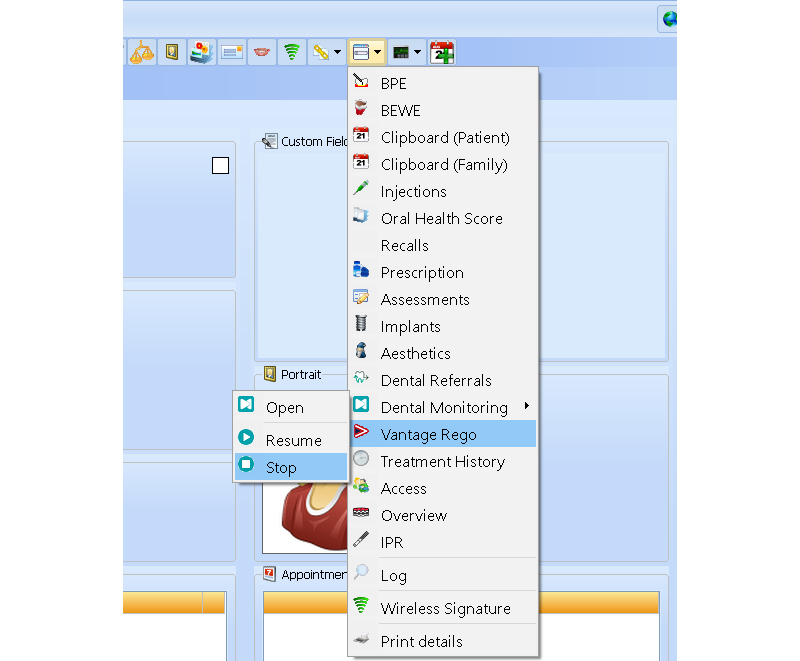
All the DentalMonitoring features are implemented in the Options menu on the SFD patient card.
Register a new patient in DentalMonitoring
Open up the patient of a patient that has not yet been created on Dental Monitoring and click the Options icon (3rd from the end) in the menu bar:
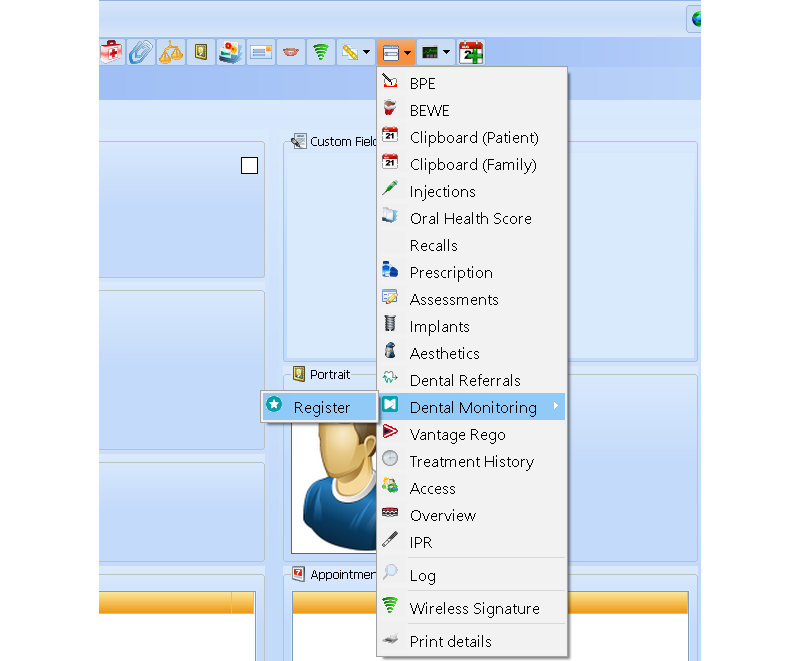
Scroll down to Dental Monitoring, and then click on Register. If the patient creation is successful, you will see the following confirmation prompt:

Pre-existing patient
In some cases, SFD might detect that a similar or identical patient already exists in DentalMonitoring. In this case, you will see a window that lists these similar DM patients. This is to prevent you from needlessly creating duplicate patients in DentalMonitoring.
See the next section for more details.
Link up an SFD patient that already exists in Dental Monitoring
To link a patient in SFD with a patient that already exists in DentalMonitoring, follow the same steps as you would for registering a new patient.
Provided the patient information in DentalMonitoring matches the information in SFD, you will see the following window:
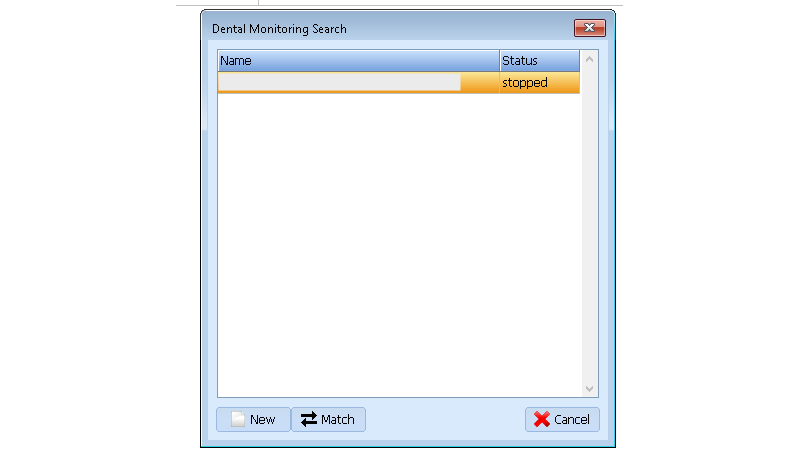
This shows DM patients whose details match the SFD patient card you are on.
Select the DM patient you want to link the SFD patient to and then click Match. The SFD and DM patient records are now linked together.
Open the DM patient card
Once a patient is created in DentalMonitoring (or matched), you are able to directly open the DM patient card from SFD by clicking Open:
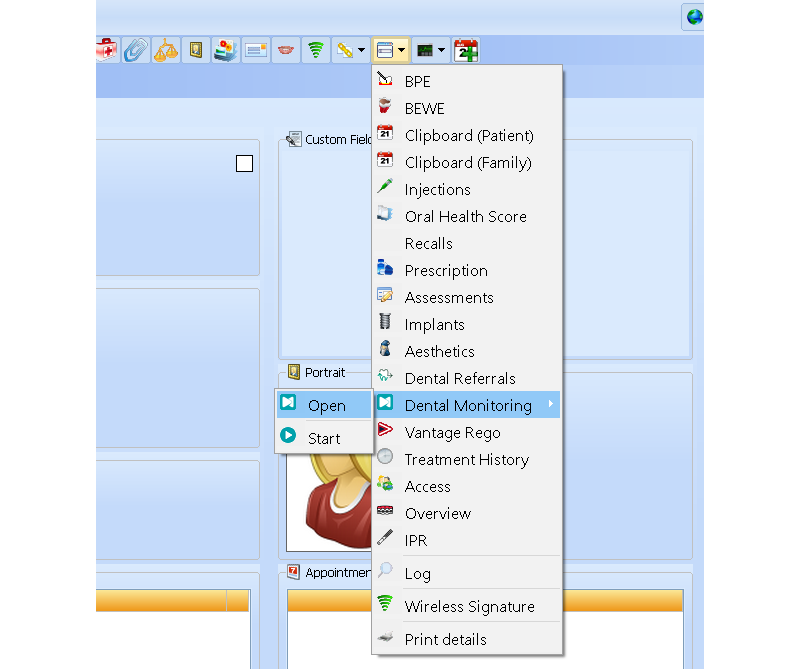
This will open DM to this specific patient's page. You may need to login to DentalMonitoring.
Patient sync notification
Occasionally, you may see this dialog when trying to open up a patient's DM card. This is due to the patient's monitoring status becoming out of sync with SFD. Simply try to open the patient card again and error will have disappeared.

Start, stop, pause and resume patient monitoring
You can manage your patients' monitoring status directly from the patient card in SFD. Based on the curent monitoring status of the patient, you will see different options in the DentalMonitoring menu.
Start patient monitoring
To start an unmonitored patient's monitoring, click Start:
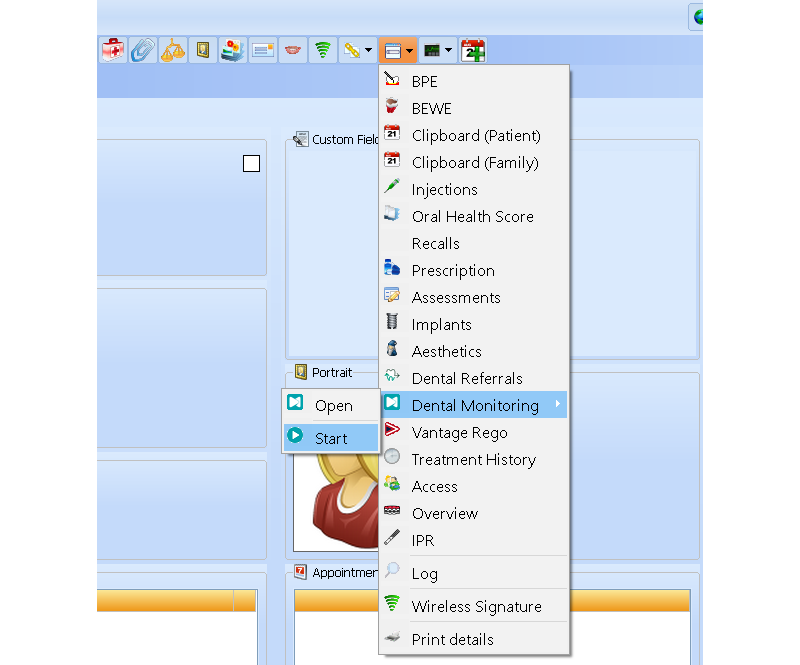
You will be prompted to select a Quickstart to start the patient with. Select the appropriate quickstart and confirm.
Stop patient monitoring
Once a patient is started, you can stop their monitoring by clicking Stop: