
From lead to retention, Bonded.ai is a cloud-based operating system for specialist orthodontists. No server, no calls to IT, and a risk-free migration pathway from your existing PMS.
Overview
- Operate DM from the Bonded patient card: Most of DM's core operational workflow can be managed and controlled
directly from the Bonded patient card, so there is no need to switch back and forth between systems. This includes:
- Managing patient monitoring (start, stop, pause, resume, scan interval, due date)
- Reviewing scans
- Patient messaging
- Patient activation links
- Set up multiple DM Doctor Accounts: If your practice operates multiple DM doctor accounts, Bonded lets you connect each one to your clinic.
- DM notifications in Bonded: Get DM clinical notifications straight into Bonded.
Featured: Dental Monitoring Triage
Every patient scan that produces a finding (aligner not tracking, hygiene slipping, a wire issue) is assessed against your clinical playbook. The agent drafts a patient message in your doctor's voice, a chart note, and the next step, absorbing the routine remote review. Every draft lands in your Agent Inbox for approval before being sent to the patient.
How it works
- A scan finding arrives from Dental Monitoring.
- The agent reads your protocols, the scan, and the patient's history.
- It drafts a reply in your doctor's voice, plus a chart note.
- It picks the lightest safe action on your decision ladder.
- You approve, edit, or escalate from the inbox.
Setup your Bonded integration
Prerequisites
- A DM API Key: If you have not done so already, generate your DM API Key.
Setup
Go to the integration settings in Bonded and click Manage in the Dental Monitoring section.
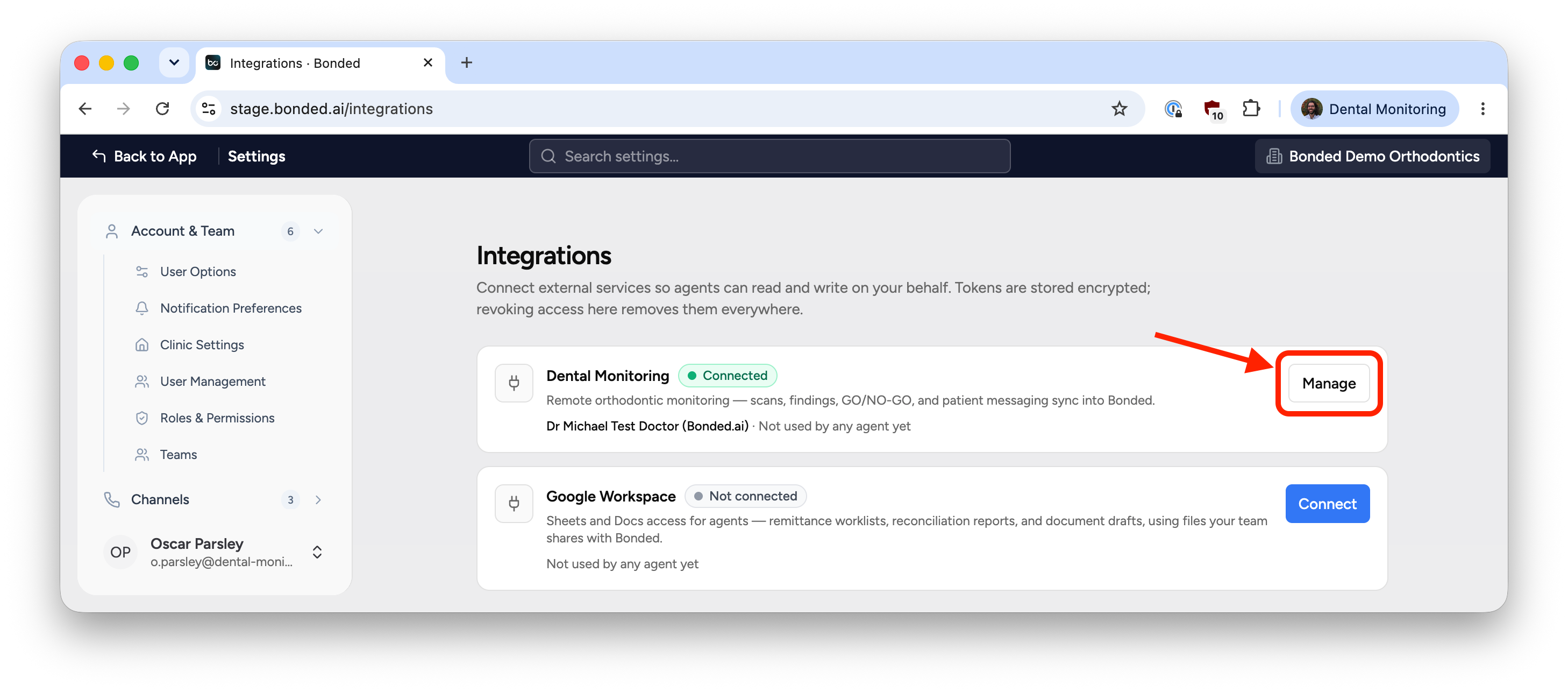
Navigate to integration settings from within Bonded
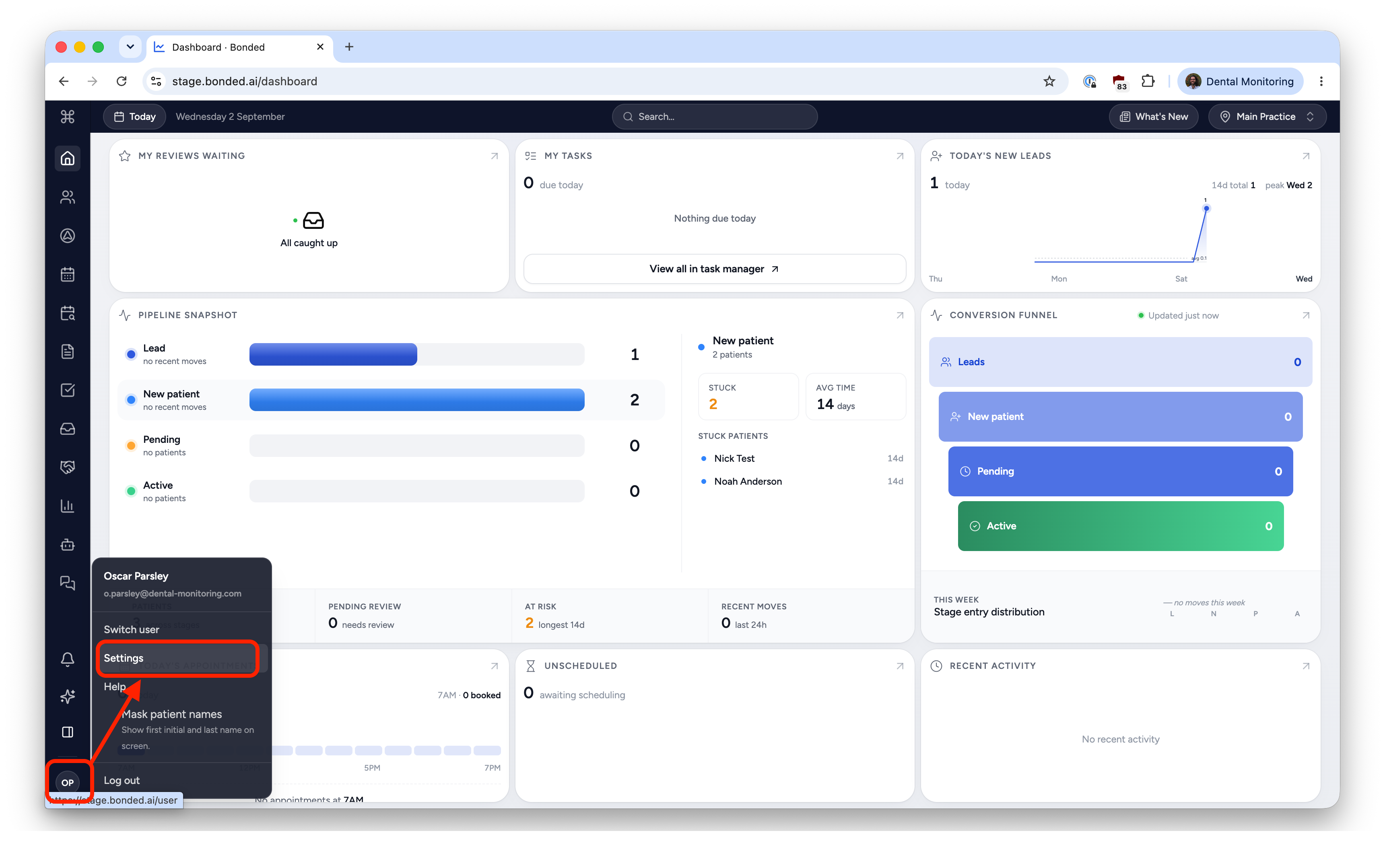
Click your initials icon in the bottom left of the screen and then click Settings:
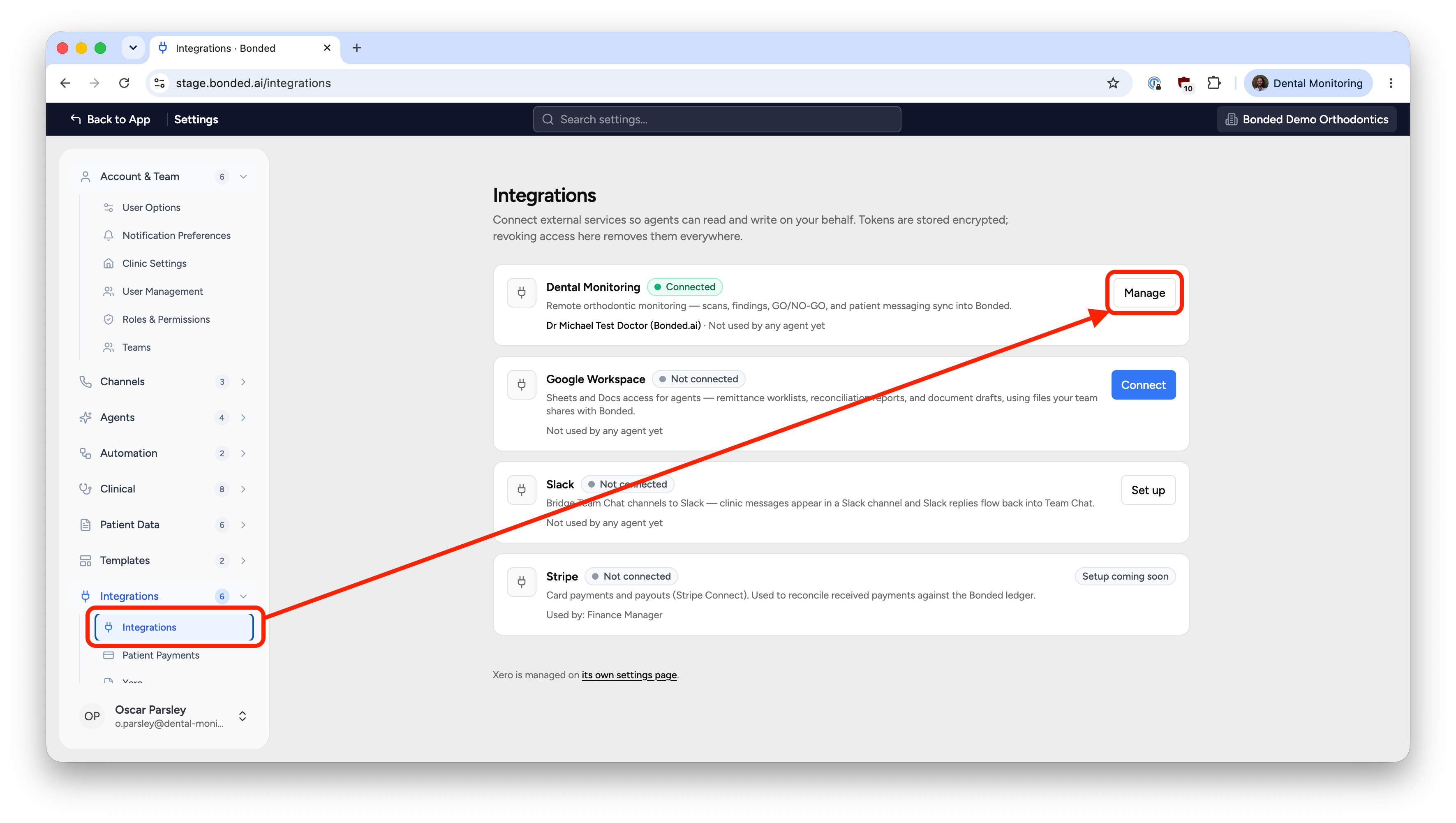
Then, in the left-hand menu, open the Integrations tab and click Integrations.
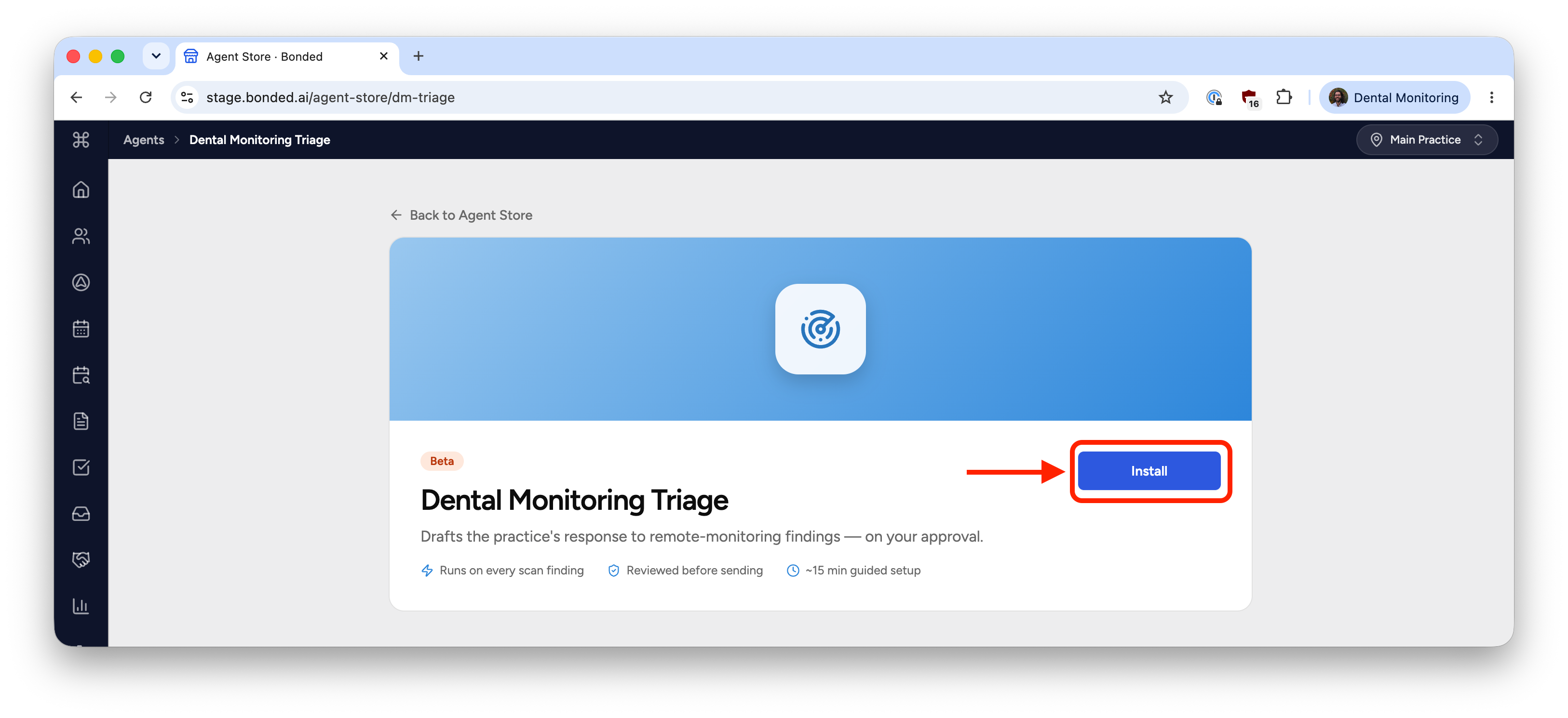
You will be redirected to the Dental Monitoring Triage app page. Click Install:
You will now add one or more DM Doctor accounts to your Bonded account.
- Select which Dental Monitoring platform your account is on.
- Optional: Select which Bonded provider corresponds to the DM account.
- Paste the Doctor's DM API Key.
Finally click Connect.
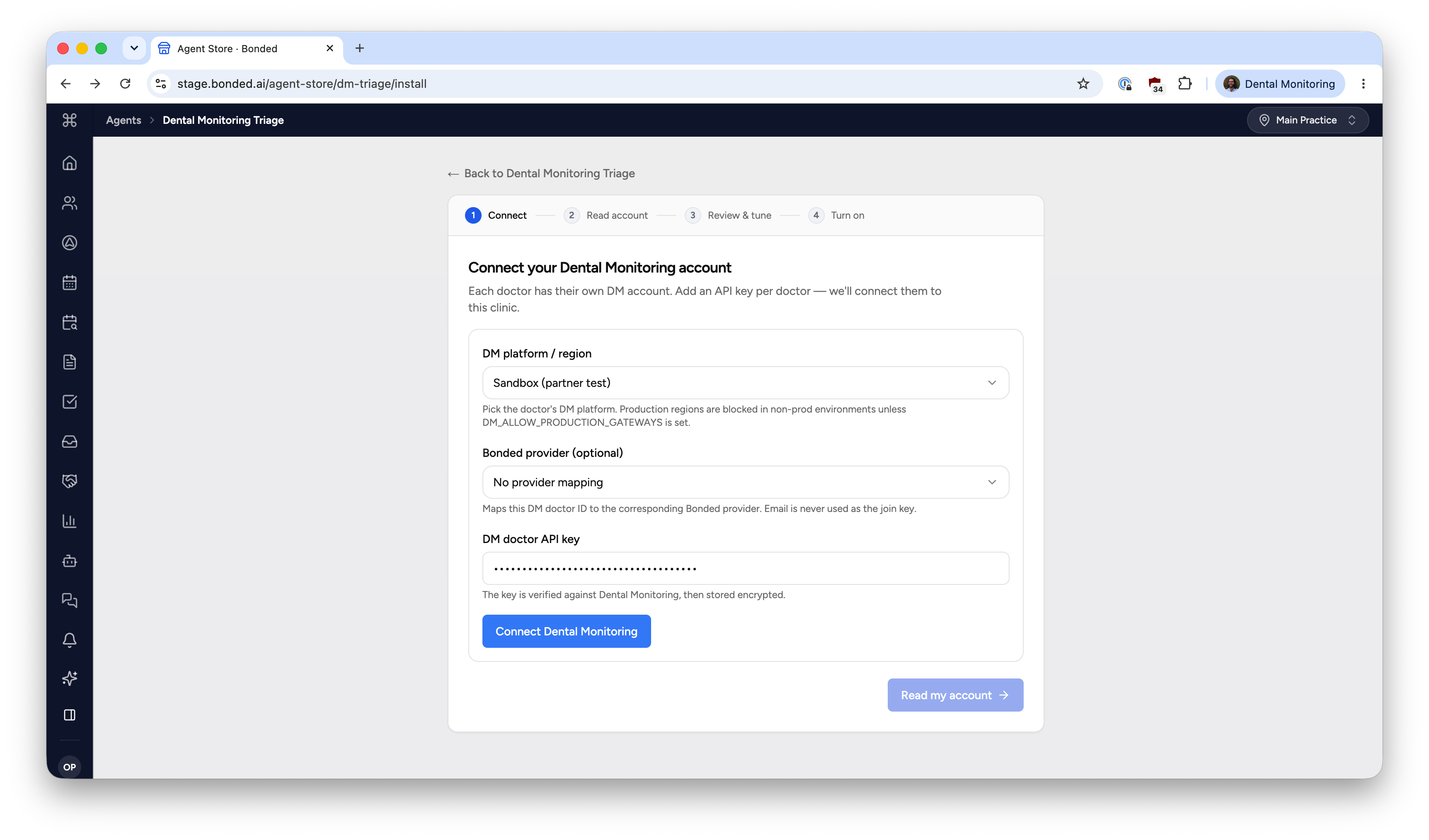
If your clinic operates multiple DM Doctor Accounts, click on Add another DM doctor and repeat the process.
Usage
Synchronize patients between Bonded and Dental Monitoring
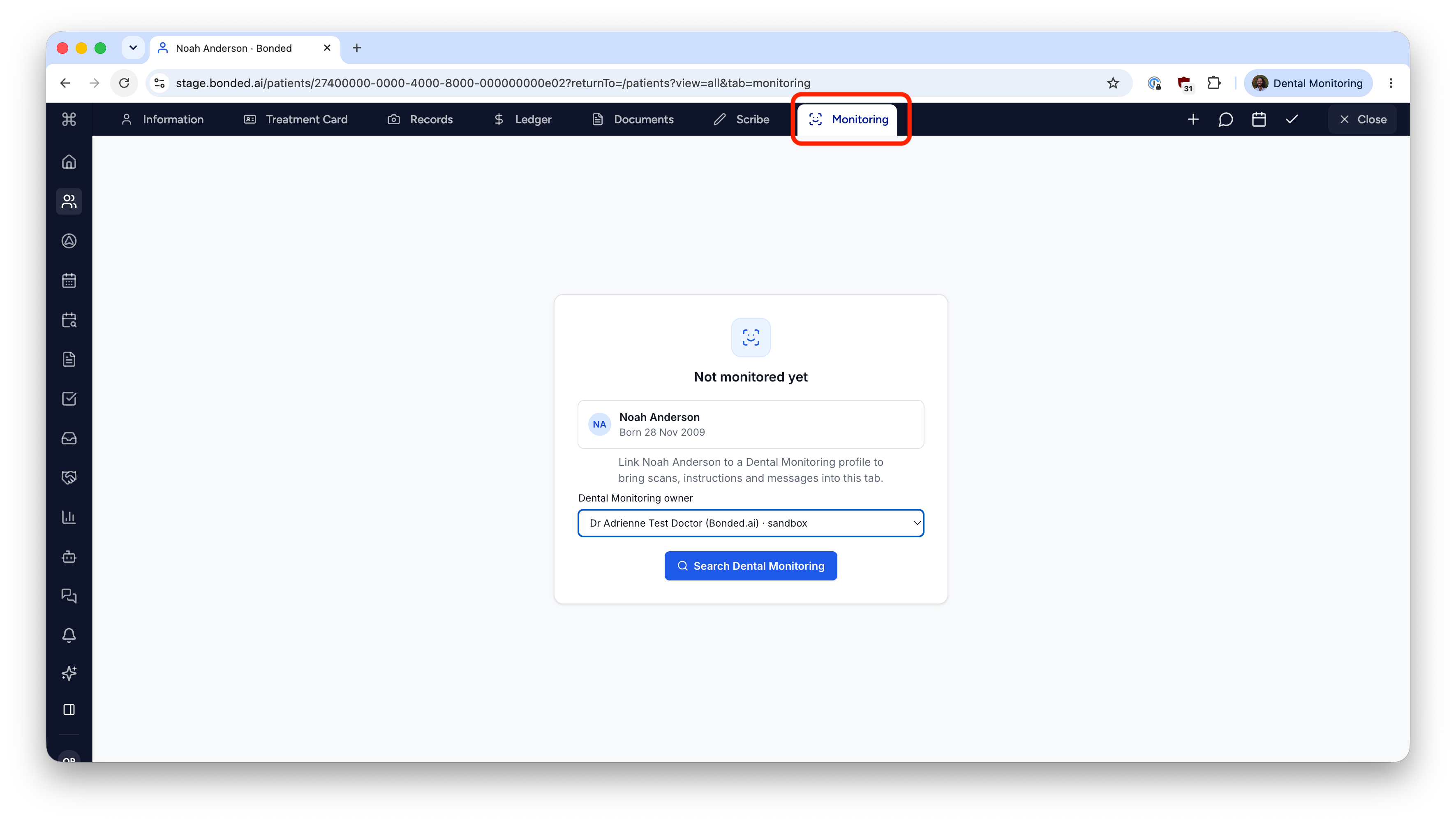
From the Bonded patient card of a patient that isn't already connected to DM, open the Monitoring tab.
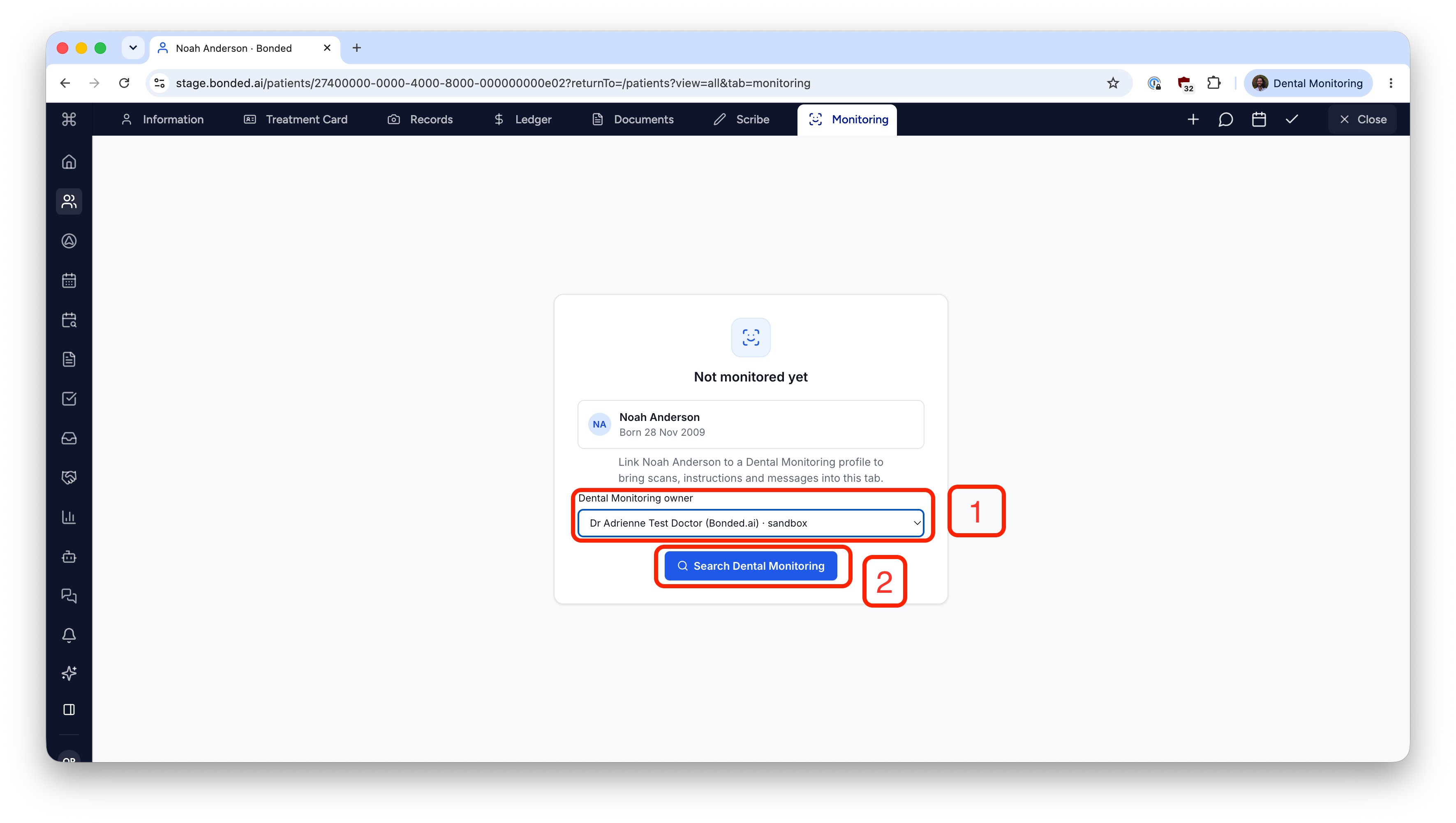
If you have multiple DM Doctor accounts connected, select which DM account the patient should be synced with, then click Search Dental Monitoring.
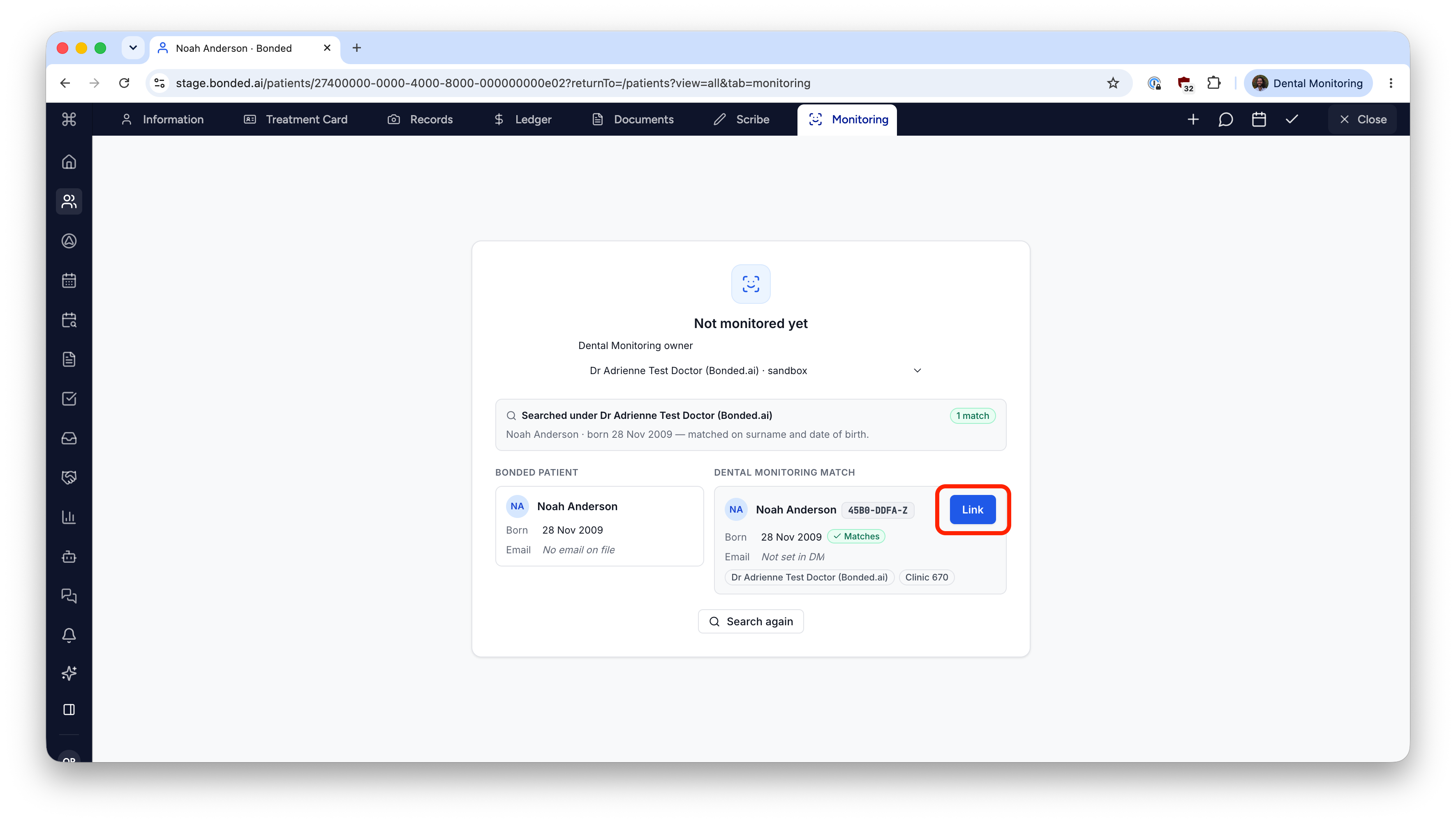
A match is found: Link the patient
If one or more patients match, choose the correct patient and click the Link button.
The patient is now linked.
No match is found: Create a new DM patient
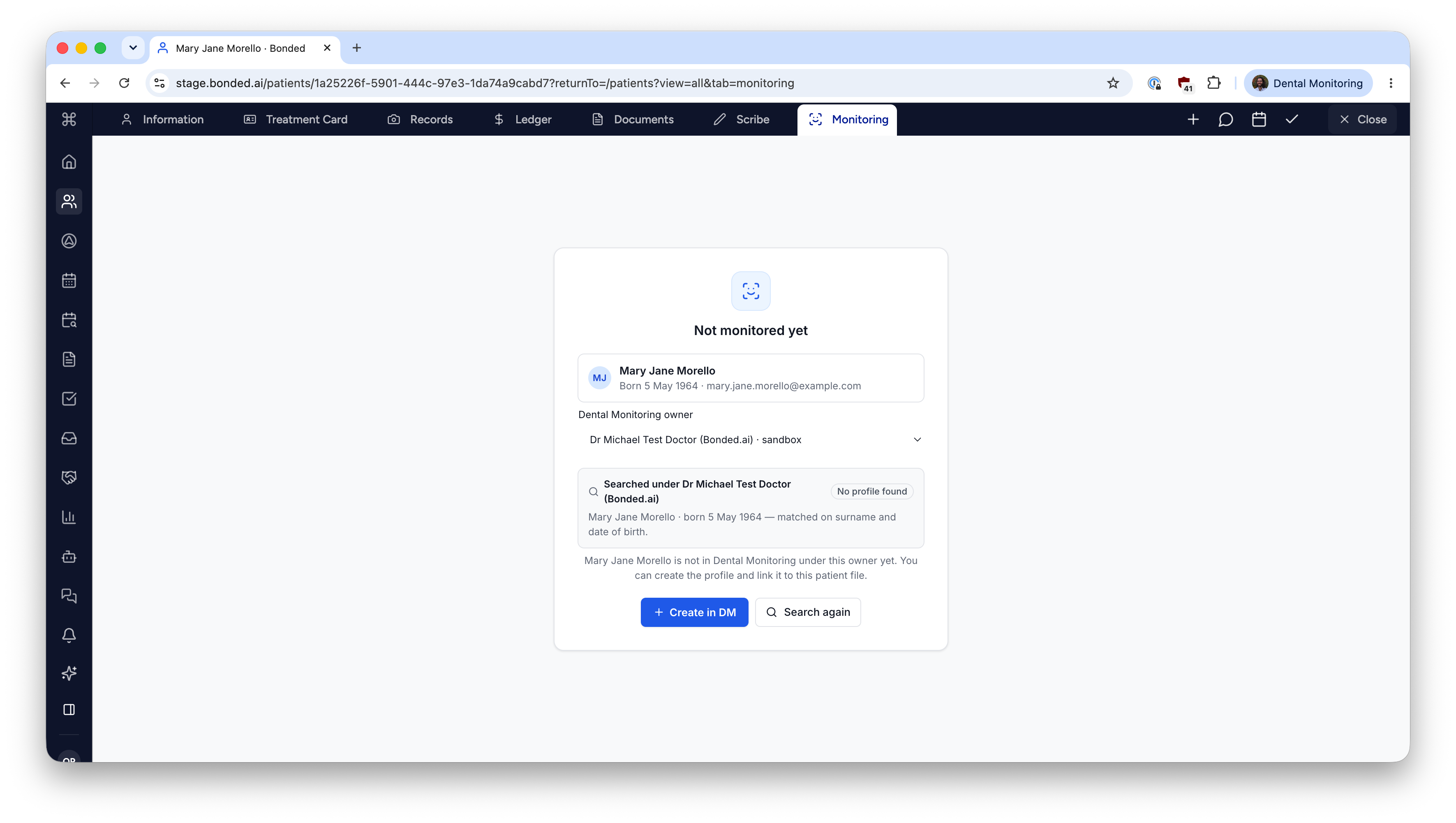
If no matching patients are found, create the patient in Dental Monitoring by clicking Create in DM.
If the DM Doctor has multiple practices in Dental Monitoring, you will be prompted to select the correct DM practice to put the patient in, then click Confirm create.
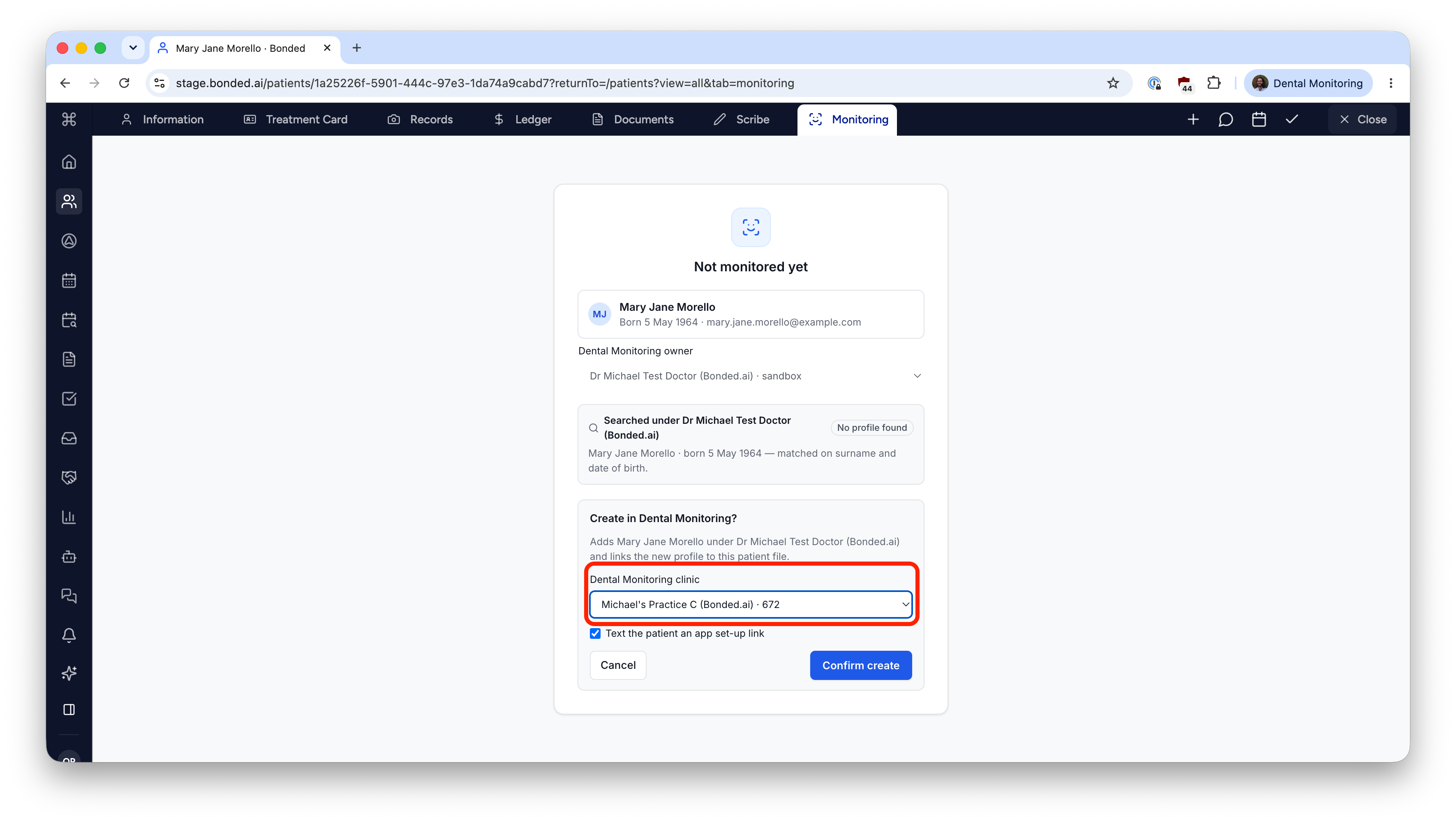
The patient record will be created in DM and linked to this patient record in Bonded.