
Prerequisites
- Your DM API Key: If you have not done so already, generate your DM API Key.
- Your DM Doctor ID: Please contact your customer support team member to provide you with your DM Doctor ID,
- Your DM Practice IDs: For each DM practice you intend to use with Dentitek, visit the practice page
Setup your Dentitek integration
-
DentalMonitoring needs to be added to Dentitek's list of imaging softwares. In Dentitek, DentalMonitoring is considred to be an imaging software.
Go to Configuration > Options générale > Imagerie tab:
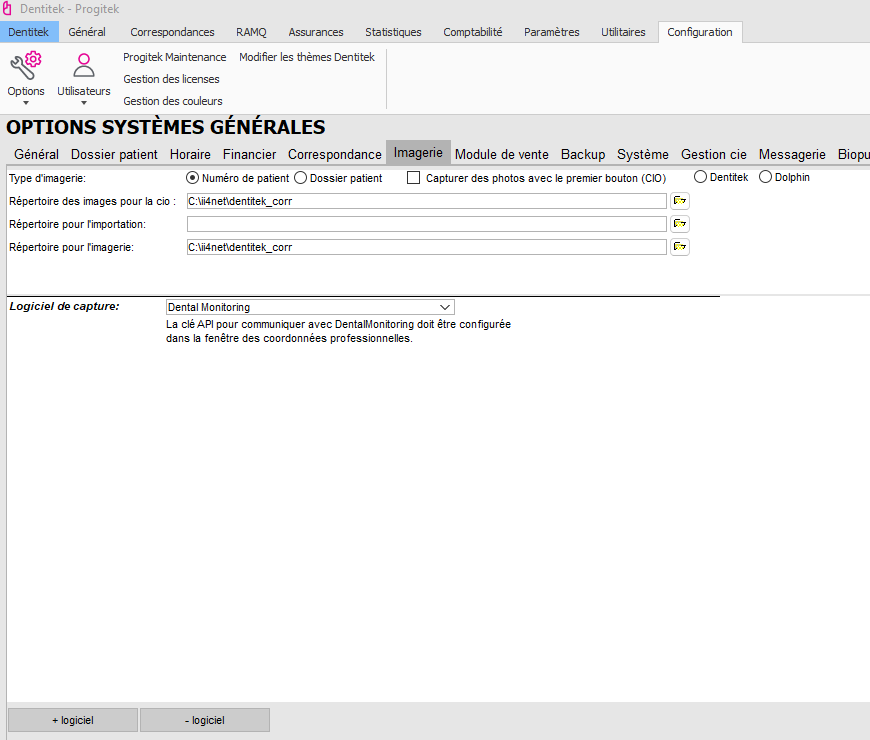
In the the
Logiciel de capturesection, selectDental Monitoring. -
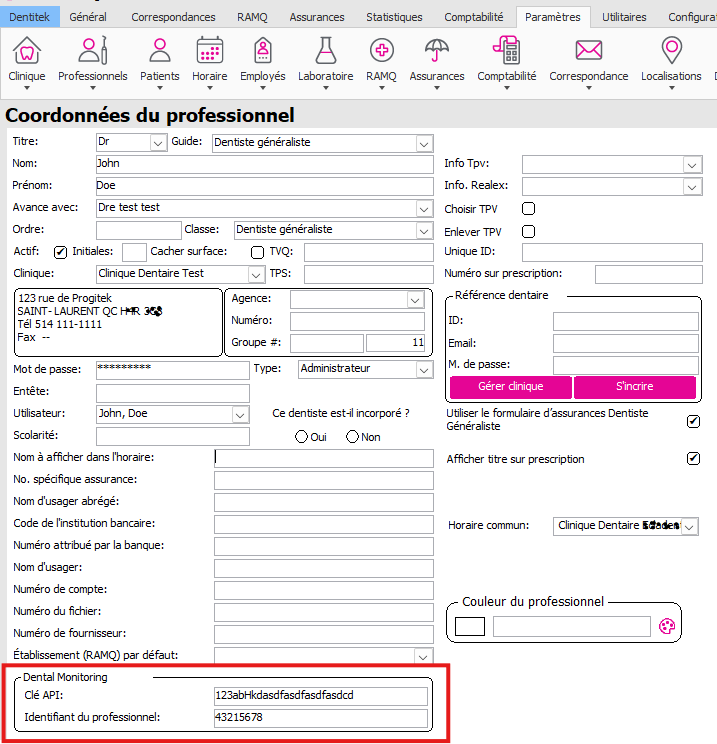
Add your API key to your healthcare practioner profile
Make sure you have completed the previous step
The following fields will not show until you have added DentalMonitoring as an imaging software in the previous step.
Go to Paramètres → Professionnels : Clé API and Identifiant de professionnel.
-
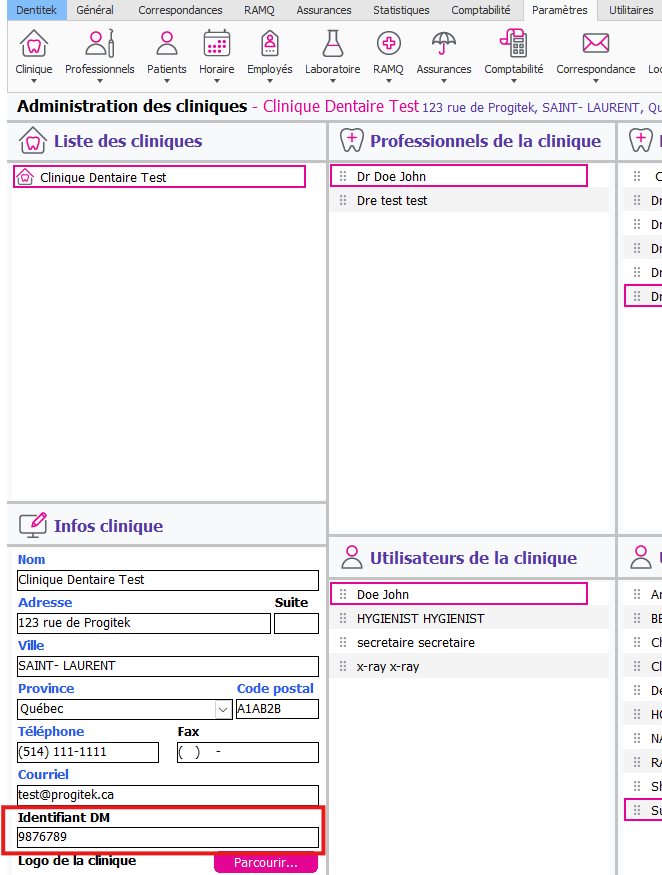
Set the the DM Practice ID in the Dentitek practice. Go to Paramètres → Clinique → Administration des cliniques
Usage
Opening the patient page from Dentitek
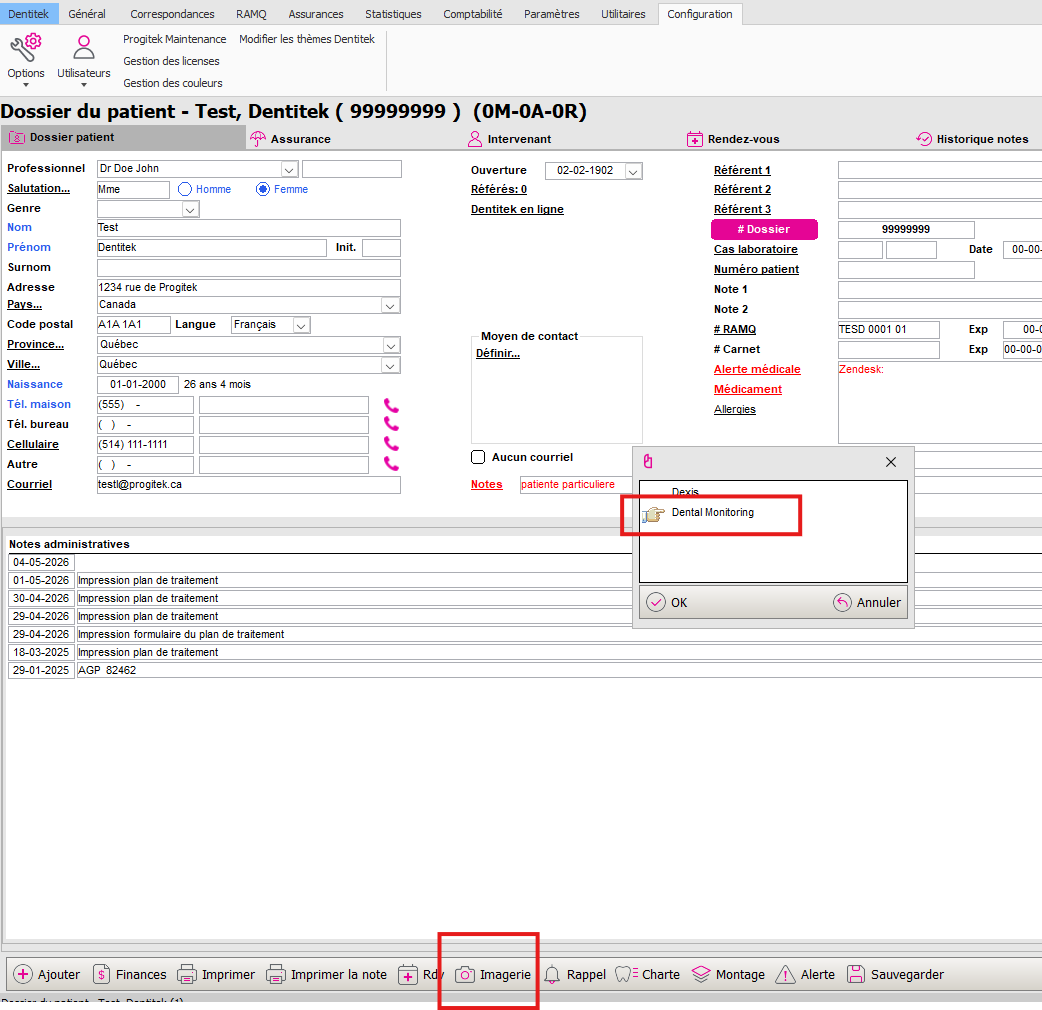
Once all the previous configurations have been completed, the selection window that appears in the Imaging option of the Patient File window will display the Dental Monitoring software in the list.
By selecting this software, Dentitek will open a web page containing the current patient's data, automatically pre-filled from the information of the patient selected in Dentitek.
Customer support
For any issue or question about the integration, you can contact:
- DM support: support@dental-monitoring.com