
If your practice runs on b-align, connecting it to DentalMonitoring removes the double entry and constant app-switching that normally sit between a chair-side appointment and a patient's remote-monitoring record. New patients flow from b-align into DM with a single click, existing patients can be paired to their DM profile without retyping any data, and monitoring can be started, paused or stopped from the same patient screen you already use every day.
For an orthodontic practice the pay-off is concrete: aligner tracking, scan reviews and DM notifications are one click away from the b-align patient page and the chair schedule, so aligner consults are prepped before the patient sits down — and because patient data flows machine to machine, the transcription errors that creep in when details are retyped by hand disappear.
Overview
The b-align integration connects b-align with DentalMonitoring so patient data and monitoring activity stay aligned across the two platforms.
- Patient creation: register new patients in DentalMonitoring directly from b-align, and trigger the DM app activation code by email.
- Patient pairing: link an existing b-align patient to their DentalMonitoring profile using the DM Patient Profile ID.
- Patient updates: keep patient data in sync between the two systems.
- Monitoring control: start, pause, resume and stop monitoring, and pick the Quick Start, from the patient's b-align profile.
- In-app DM access: open the patient's DentalMonitoring card from the b-align patient page and from the chair schedule via a dedicated DM icon.
Prerequisites
- A DM API Key. If you have not done so already, generate your DM API Key.
Setup your b-align integration
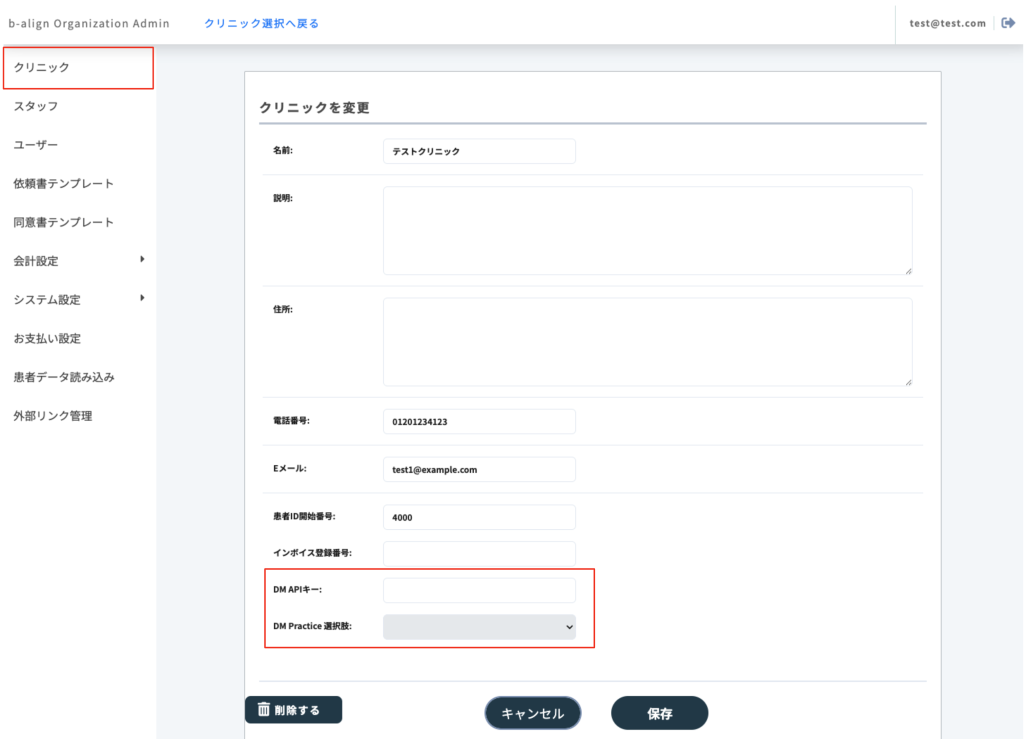
Activation is done once per clinic from the b-align Clinic Management screen. You will need b-align Organization Admin rights on the clinic you are setting up.
-
In b-align, open Clinic Management and go to the Clinic List screen. Select the clinic you want to set up.
-
In the clinic edit form, paste the DM API Key you generated in the prerequisites into the DM API Key field, then click Save.
-
Go back to the Clinic List and reopen the same clinic. Under DM Practice Selection, choose the DM Practice you want to link to this b-align clinic, then click Save.
The integration is now active for this clinic. Repeat the steps for each additional clinic that needs to be connected.
Other information
Customer support
For any issue or question about the integration, you can contact either b-align or DentalMonitoring customer support interchangeably. Each team can resolve most requests directly, and will escalate to the other partner when needed.
- b-align support: contact your usual b-align support channel.
- DM support: support@dental-monitoring.com
Supported languages
The b-align interface is provided in Japanese. The screenshots on this page show the Japanese UI; the field names used in the instructions above (DM API Key, DM Practice Selection, Register Patient, Link to Existing Patient, Send Activation, Start monitoring, Pause, Stop) are the English labels for the equivalent b-align controls.